Kaspersky Create Company And Download Report
Kaspersky Create Company
1. In your browser, go to Kaspersky Business Hub
.JPG)
2. Sign in to your account on Kaspersky Business Hub by specifying the user name and the password.
.png)
3. On the Companies tab, click the New company button in the right area of the screen.
.JPG)
4. Create a workspace
Step 1: Select a software solution → Kaspersky Endpoint Security Cloud → Next.
.JPG)
Step 02: Terms of Use of Kaspersky Endpoint Security Cloud → select the check boxes → I accept the terms.
.JPG)
Step 03: Workspace information page of the Wizard, specify the main details of your company
Name of your company → Country → Number of devices → Additional company description field (optional) → Next.
.JPG)
Kaspersky Download Report
1. In the workspace creation message, click the link to go to the list of companies → Expand the company name → Go to workspace.
.JPG)
2. Go to reports → Select File → Click on PDF.
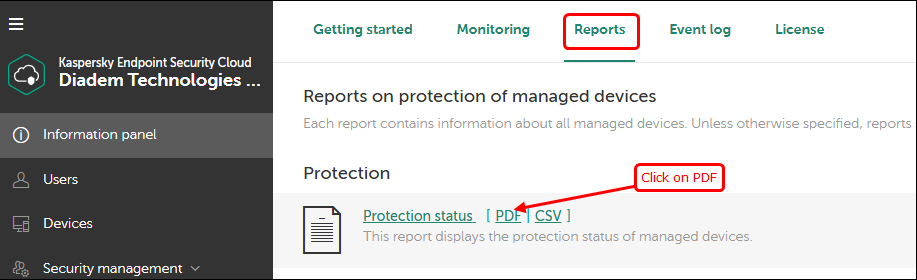
3. Click the download button to download the report.
.png)
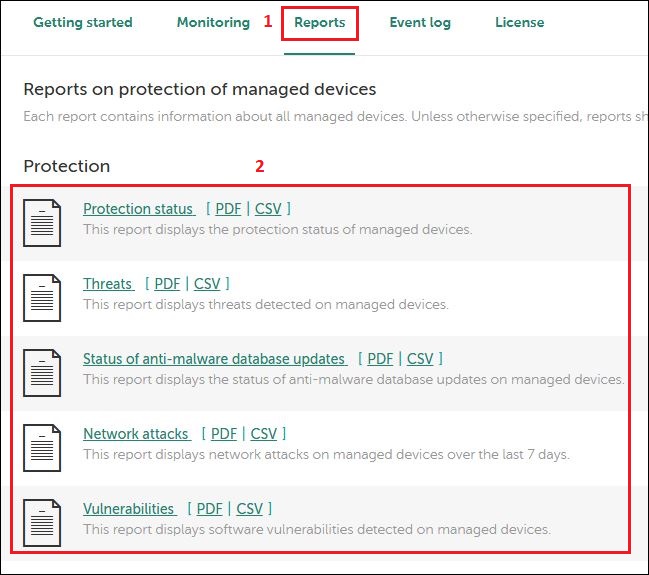
4. Download all the PDF files listed below.
5. Once the PDF reports are downloaded, send them to the client via email .