Email Scout Reports in SpamExpert Spam Filter
Overview
Email Scout Reports allow administrators and users to receive scheduled reports of emails. Reports can be configured for incoming and outgoing email traffic and can be delivered automatically at a scheduled time
Accessing the Spam Filter Portal
-
Open the Spam Filter portal using the link below:
-
Log in using your domain name and password.
.png)
Domain Wise Incoming Scout Report
This report provides a daily summary of incoming emails that have been quarantined for a specific domain.
Steps to Create an Incoming Scout Report
-
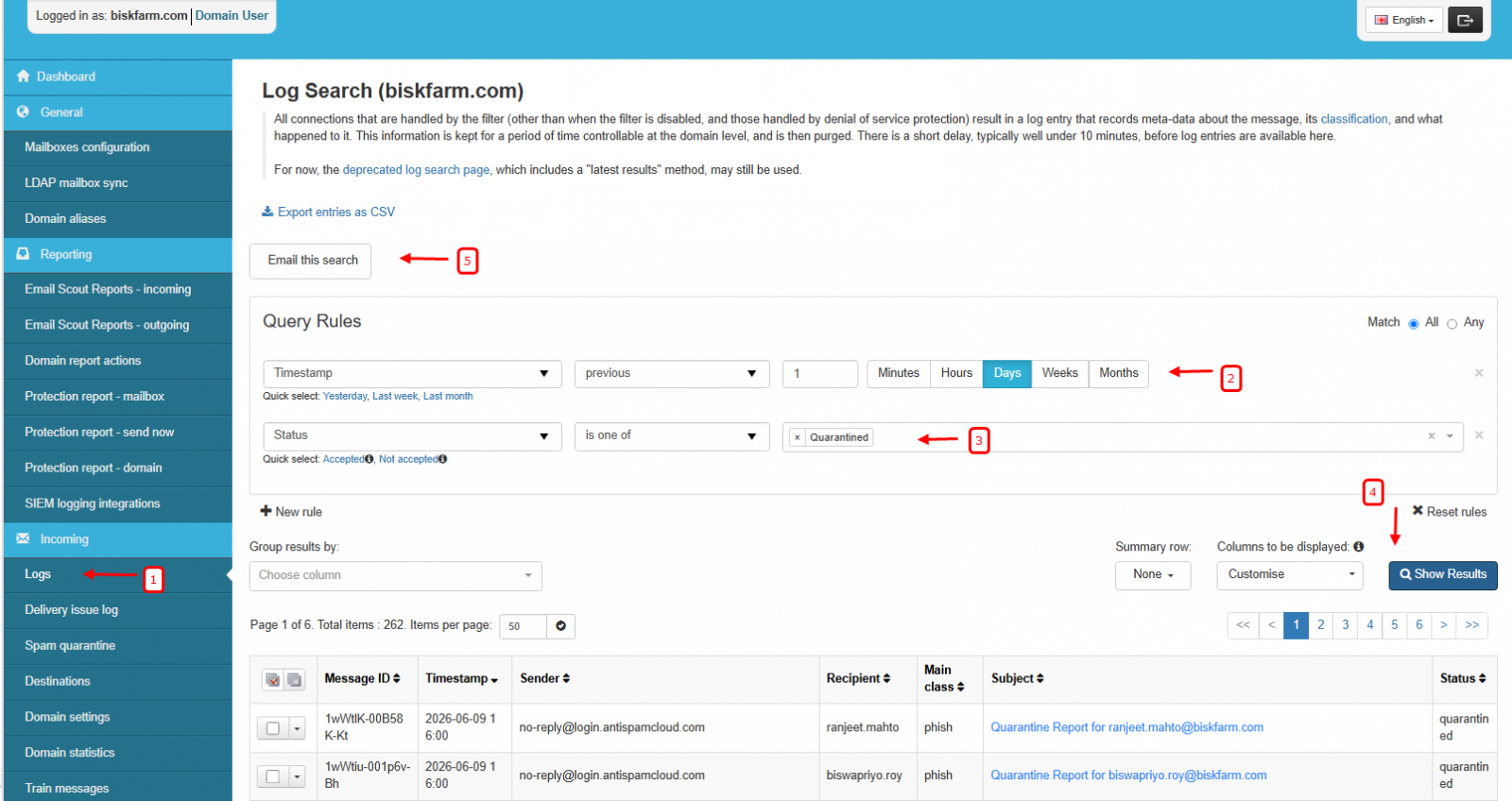
Navigate to Incoming Logs.
-
Under Query Rules, configure the following:
-
Timestamp: Previous 1 Day
-
Status: Is one of → Quarantined
-
-
Click Show Results to generate the log results.
-
Once the results are displayed, click Email This Search.
-
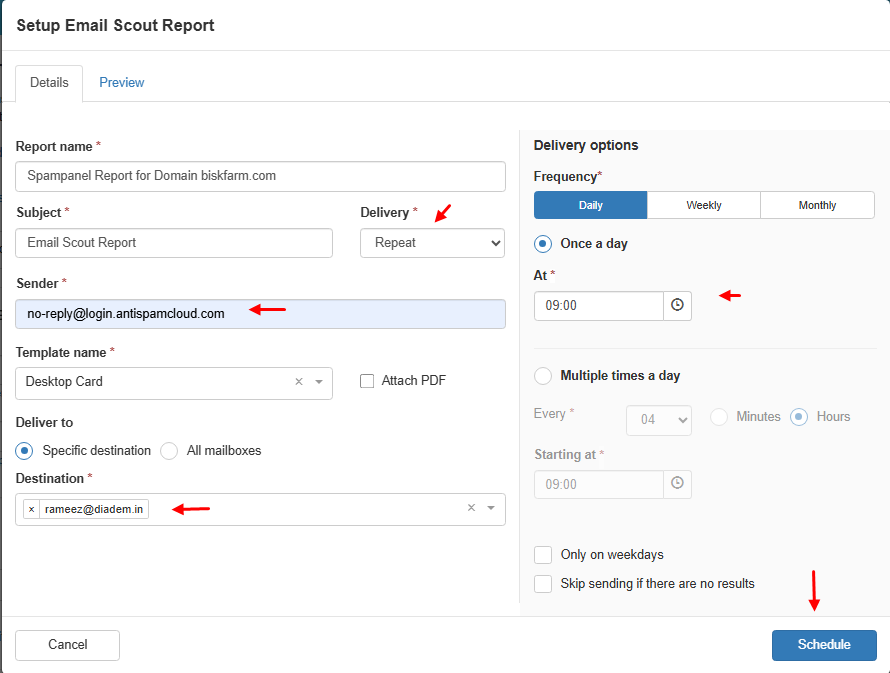
The Setup Scout Report window will appear.
-
Configure the report settings, including:
-
Report name
-
Recipient email address
-
Schedule frequency
-
Delivery time
-
-
Click Save to create the report.
Managing Incoming Scout Reports
After the report is created:
-
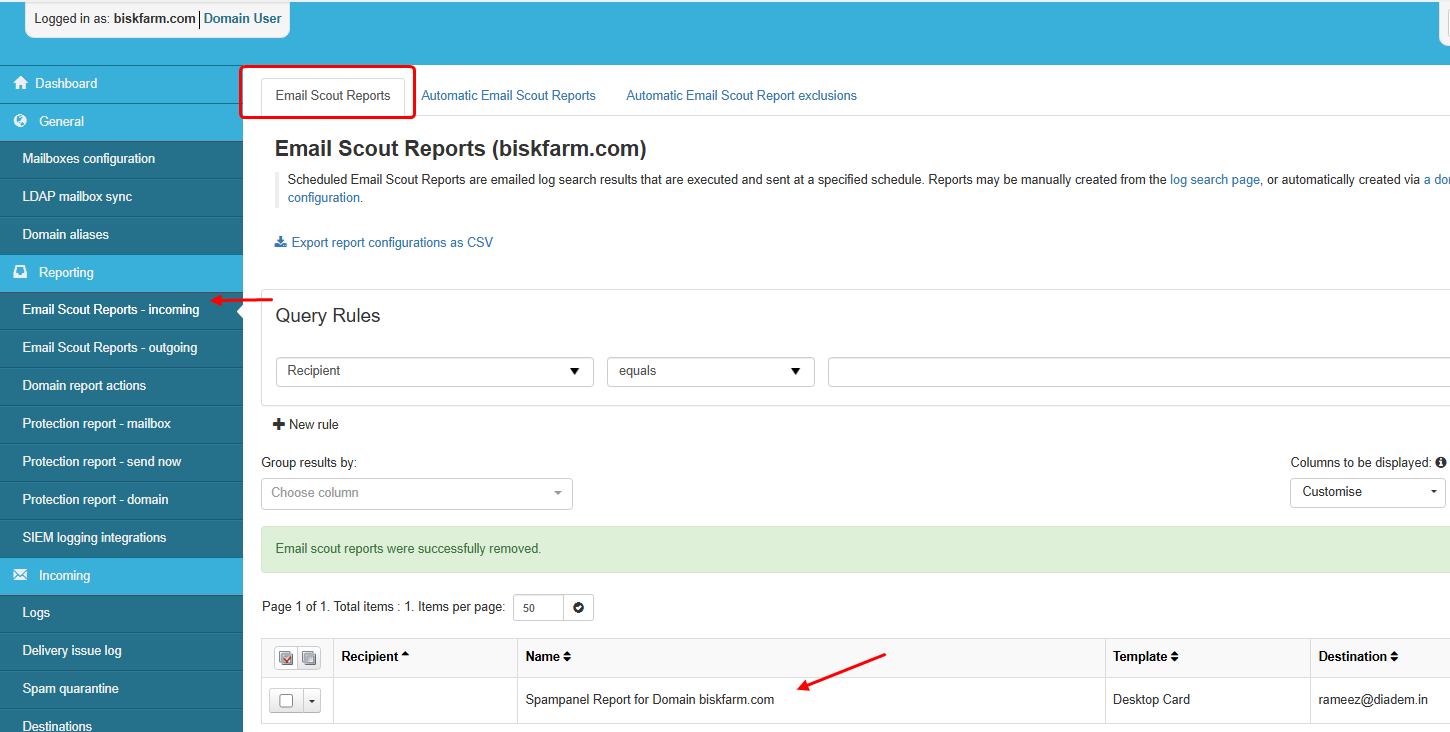
Navigate to Email Scout Reports → Incoming.
-
Locate the report in the list.
-
Use the available options to:
-
Edit the report
-
Modify the schedule
-
Disable or delete the report
-
User-Wise Scout Report
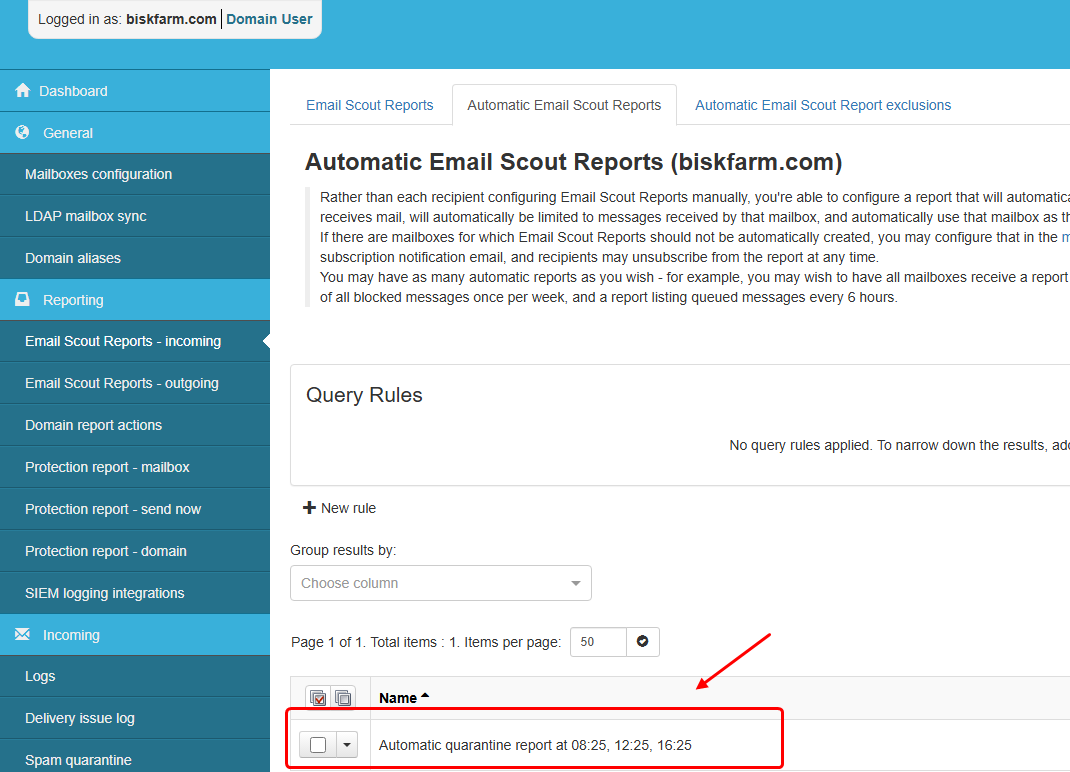
User-wise Scout Reports allow mailbox users to automatically receive reports containing their quarantined incoming emails.
Steps to Enable Automatic Scout Reports
-
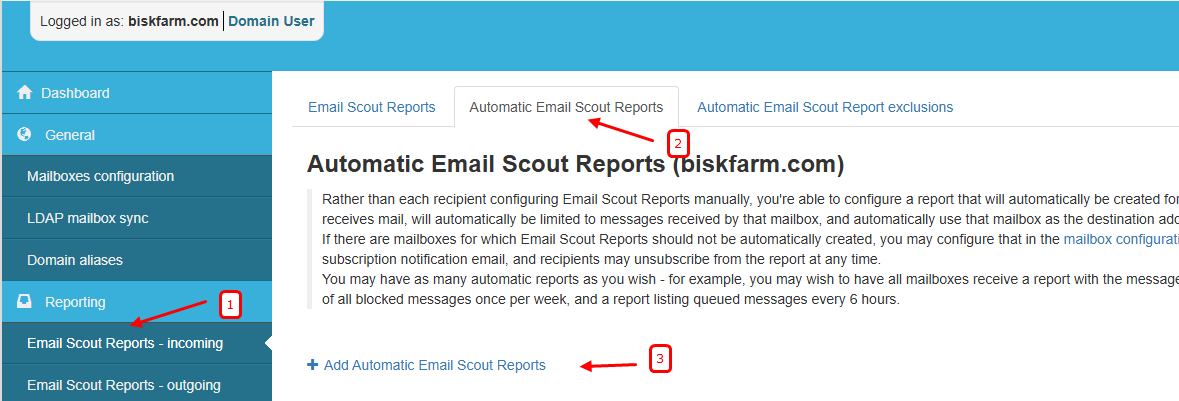
Navigate to Automatic Email Scout Reports.
-
Click Add Automatic Email Scout Report.
-
Configure the report settings as required.
-
Save the configuration.
Once enabled, all mailbox users with quarantined incoming emails will automatically receive Scout Reports according to the configured schedule.
You can modify the report schedule at any time based on your organization's requirements.
Domain-Wise Outgoing Scout Report
This report provides a daily summary of outgoing emails that have been quarantined for a specific domain.
Steps to Create an Outgoing Scout Report
-
Navigate to Outgoing Logs.
-
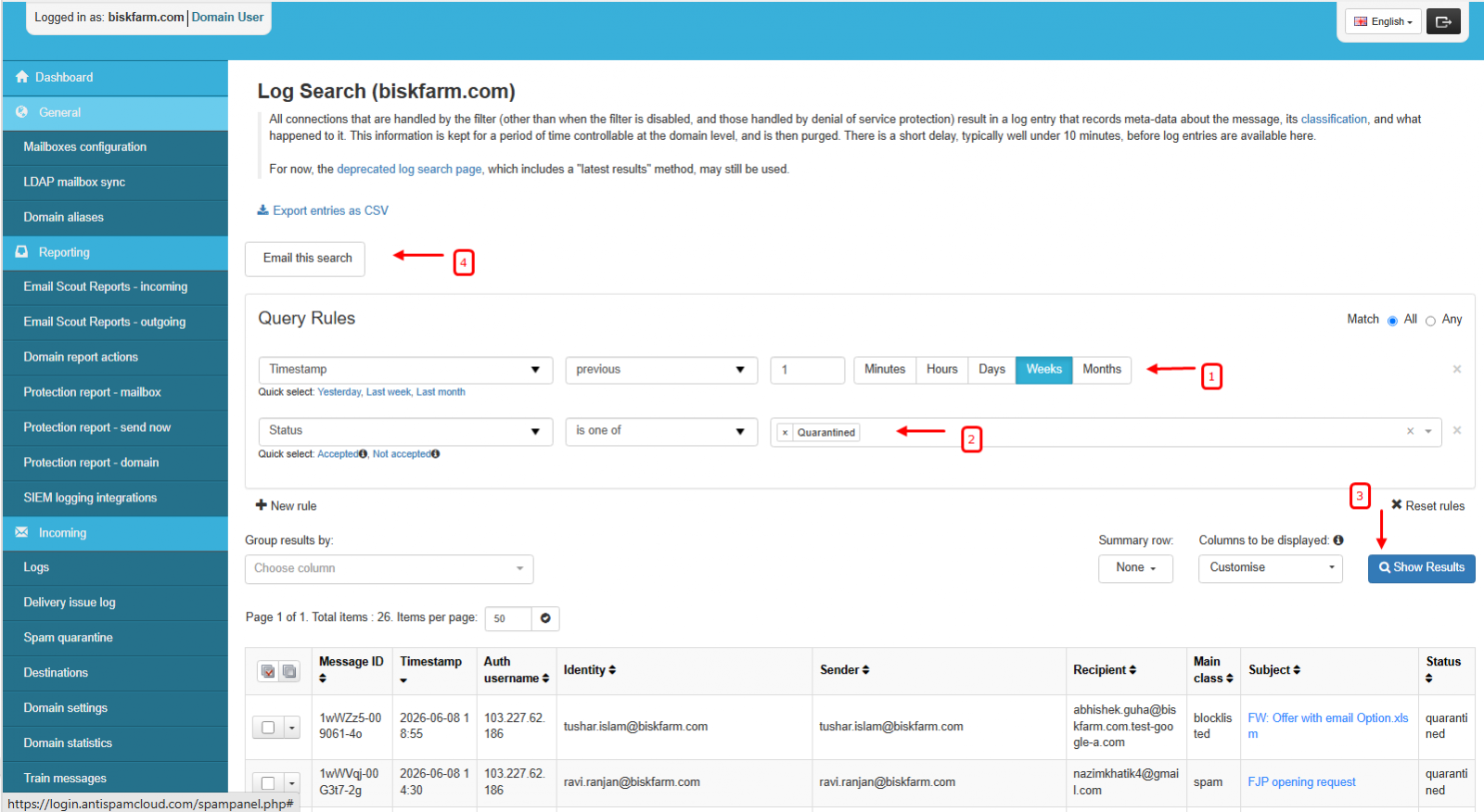
Under Query Rules, configure the following:
-
Timestamp: Previous 1 Day
-
Status: Is one of → Quarantined
-
-
Click Show Results to generate the log results.
-
Once the results are displayed, click Email This Search.
-
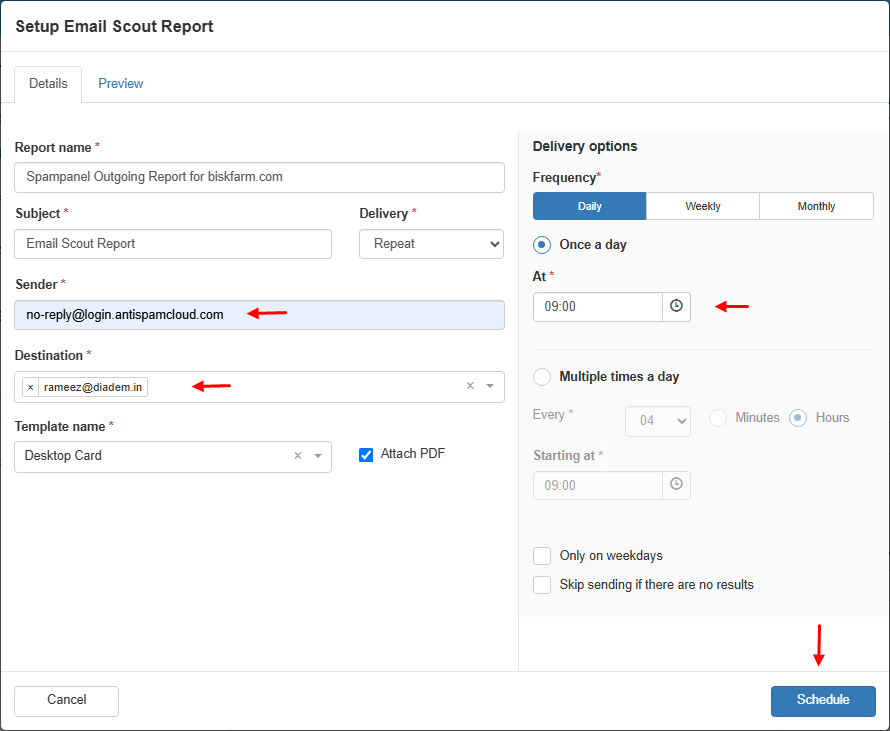
The Setup Scout Report window will appear.
-
Configure the report settings, including:
-
Report name
-
Recipient email address
-
Schedule frequency
-
Delivery time
-
-
Click Save to create the report.
Managing Outgoing Scout Reports
After the report is created:
-
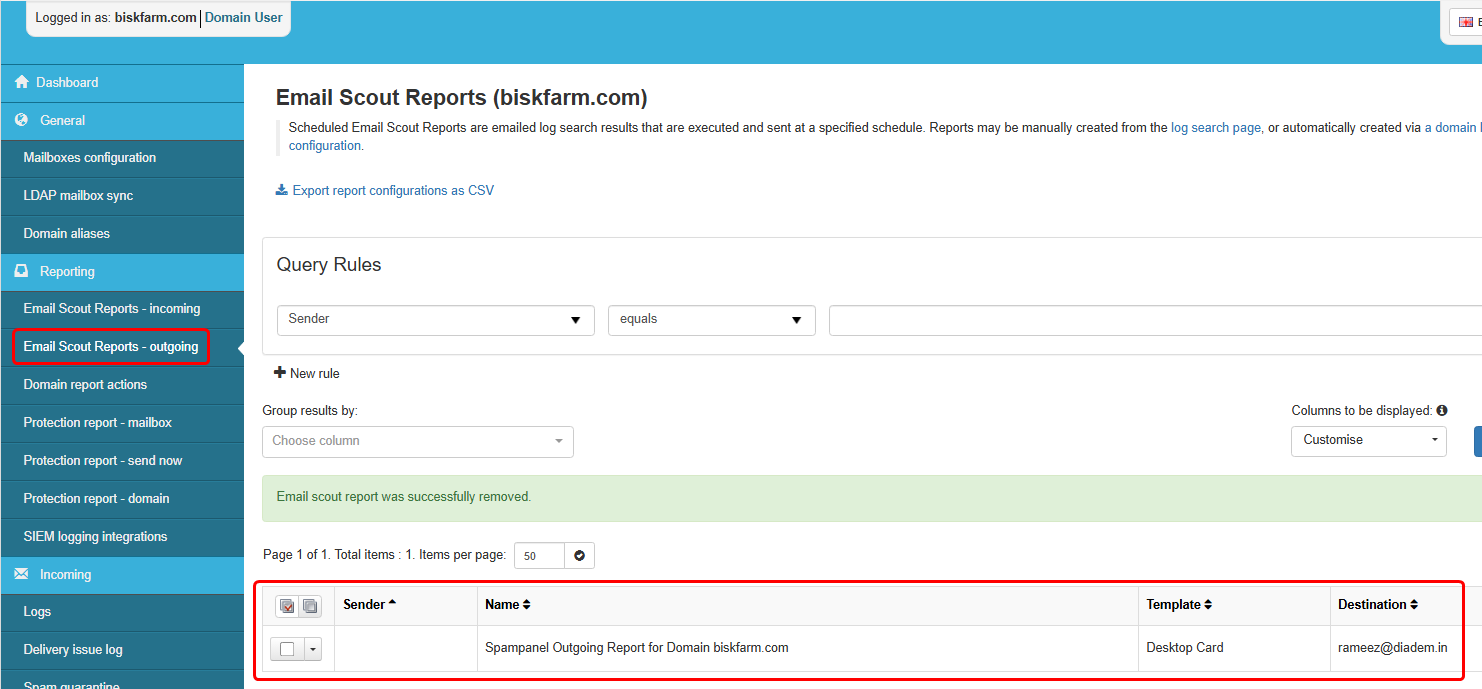
Navigate to Email Scout Reports → Outgoing.
-
Locate the report in the list.
-
Use the available options to:
-
Edit the report
-
Modify the schedule
-
Disable or delete the report
-
Notes
-
Scout Reports can be scheduled to run daily at a specified time.
-
Only emails matching the selected search criteria will be included in the report.
-
Administrators can modify report schedules and recipients at any time from the Email Scout Reports section.